

Fire watch operations
Fire Watch Software
Give each fire watch shift a connected record, from assigned work through patrol observations to a completed report. Apply the site’s requirements and review the evidence in context.
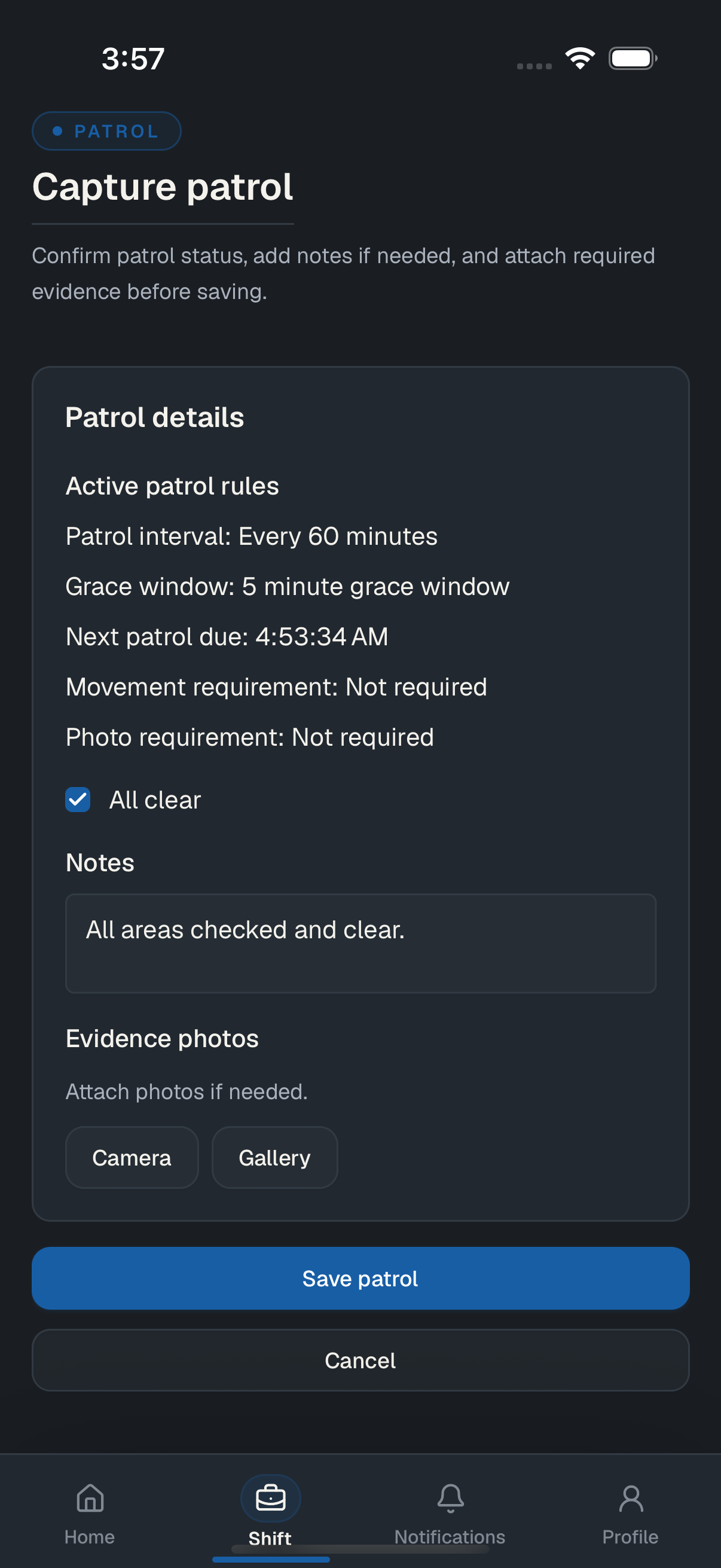
JUDGR in use
See the workflow
A walkthrough of the actual application, using demonstration records.
Prepare the site and assigned specialist
Prepare the site, boundary, specialist, and local assignment times. Check required qualifications and provider authorization before deployment. The specialist starts their own eligible scheduled assignment online.
Jurisdiction-linked sites follow their governing policy. Independent sites need no jurisdiction approval, while retaining assignment, location, and other start conditions.
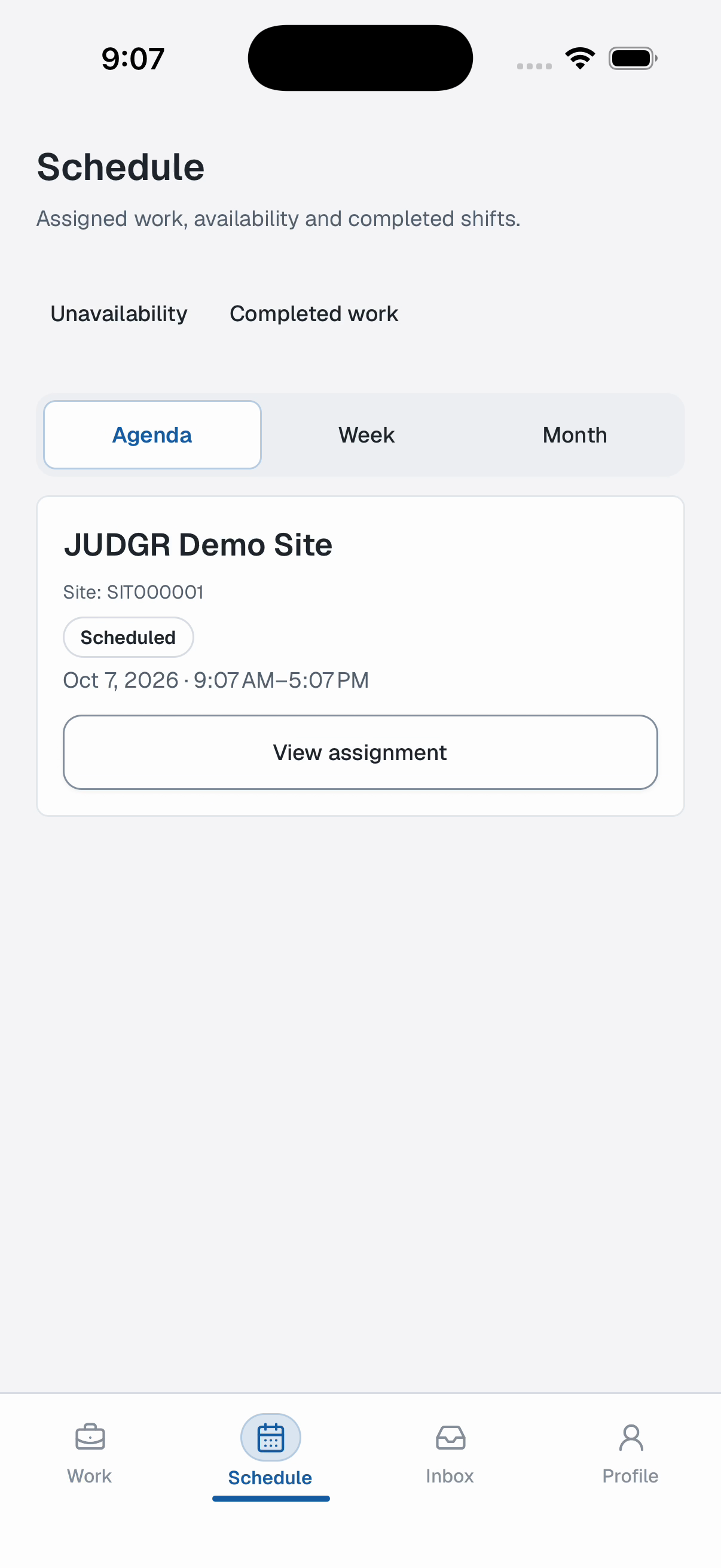
Make the patrol requirements explicit
Independent rules use a 60-minute interval, five-minute grace, required movement, optional photos, and no certification requirements. Jurisdiction rules can set different timing, qualifications, photos, and movement requirements.
For work during a system impairment, confirm the areas to observe and emergency procedure with the responsible organization. Record those observations against the applicable instructions.
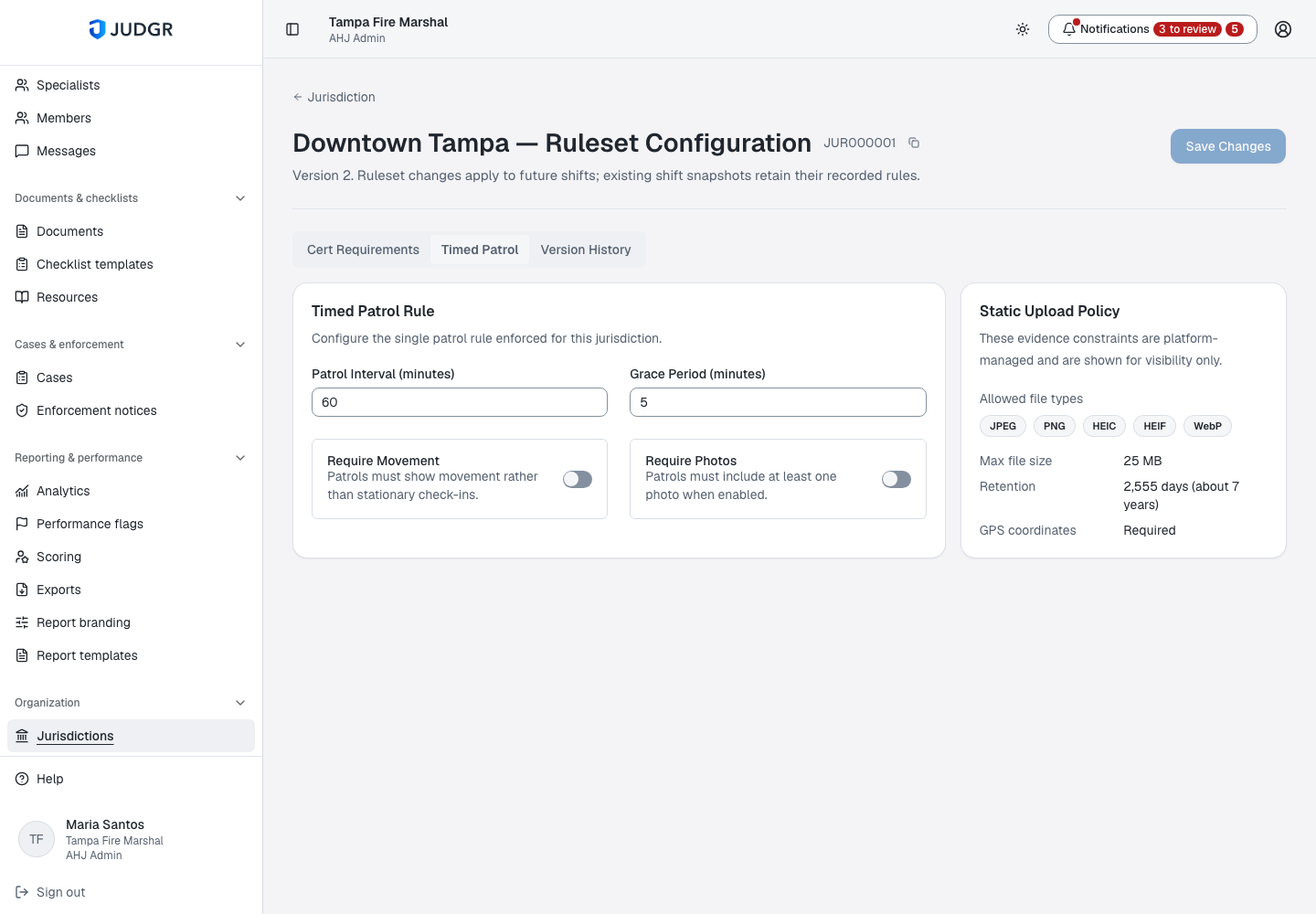
Capture what happened during each patrol
Each patrol records an observation, all-clear state, notes, and supported evidence. Identify the area checked, condition found, and action taken. Categories and captions give photos useful context for a reviewer who was not present.
Keep incidents connected to the shift
Report an incident within the active shift and add supporting evidence. Keep the event connected to the patrol and actions taken. For an urgent hazard, follow the site’s emergency procedure; recording an incident does not dispatch a response.
Review saved work while the shift is active
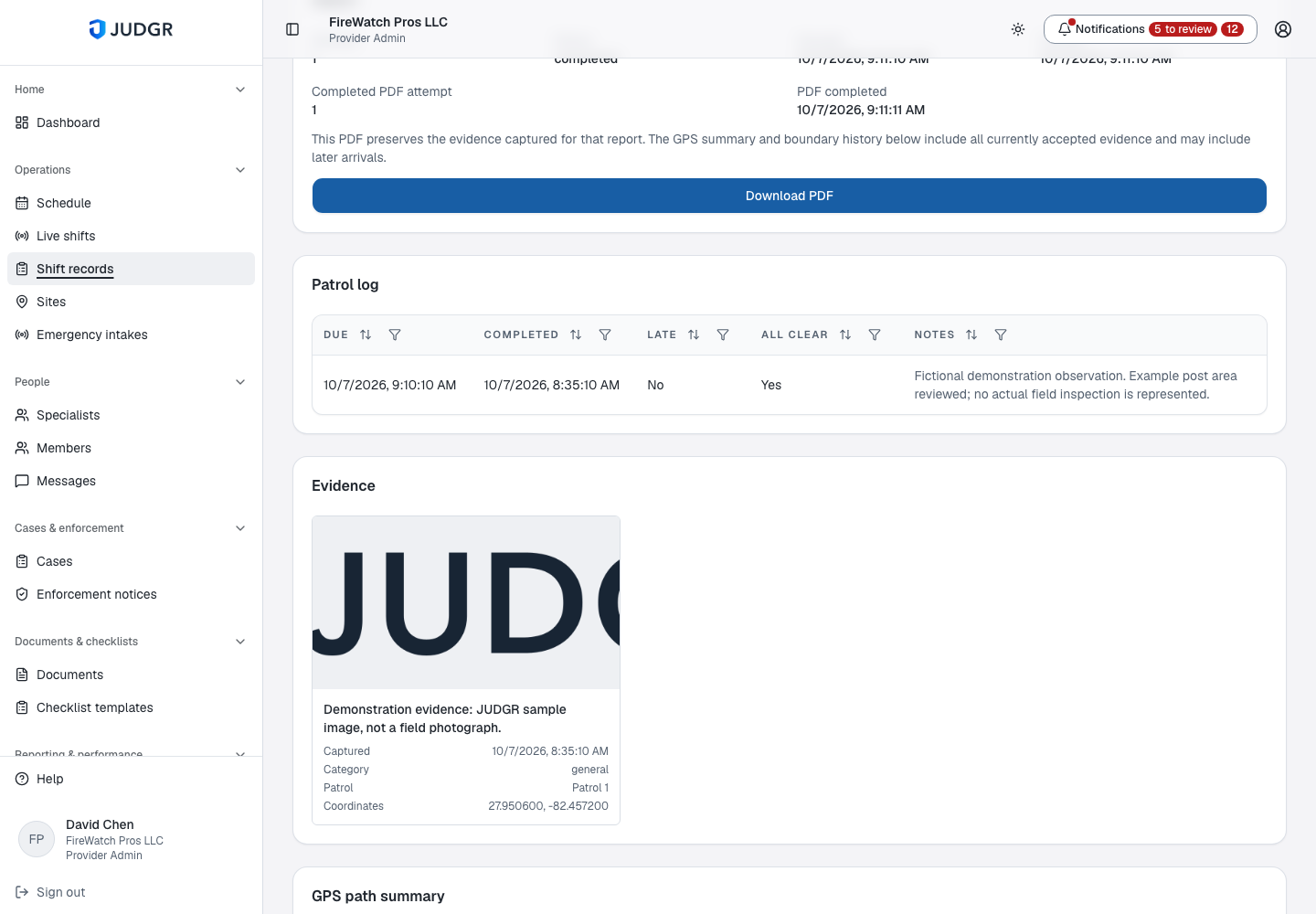
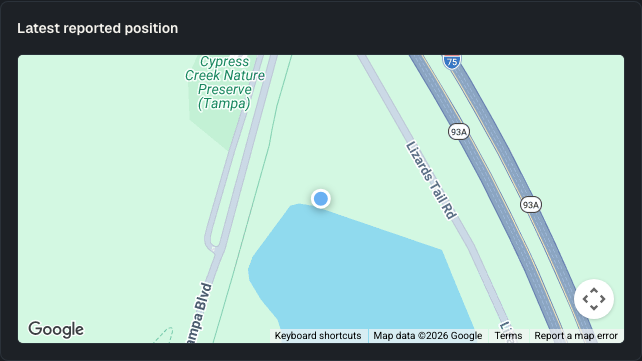
Authorized provider and AHJ reviewers inspect received patrols, notes, and confirmed photos while work is active. Offline entries appear after synchronization. Location displays add reported sample context with timestamps for review.
Plan for connectivity and permission problems
After an online start, supported patrols, evidence, incidents, and closeout can queue through disconnection. Retain pending work and reconnect to synchronize. Use Tracking & sync details for permission or collection problems; resumed tracking cannot recreate unrecorded samples.
Finish with a report that can be checked
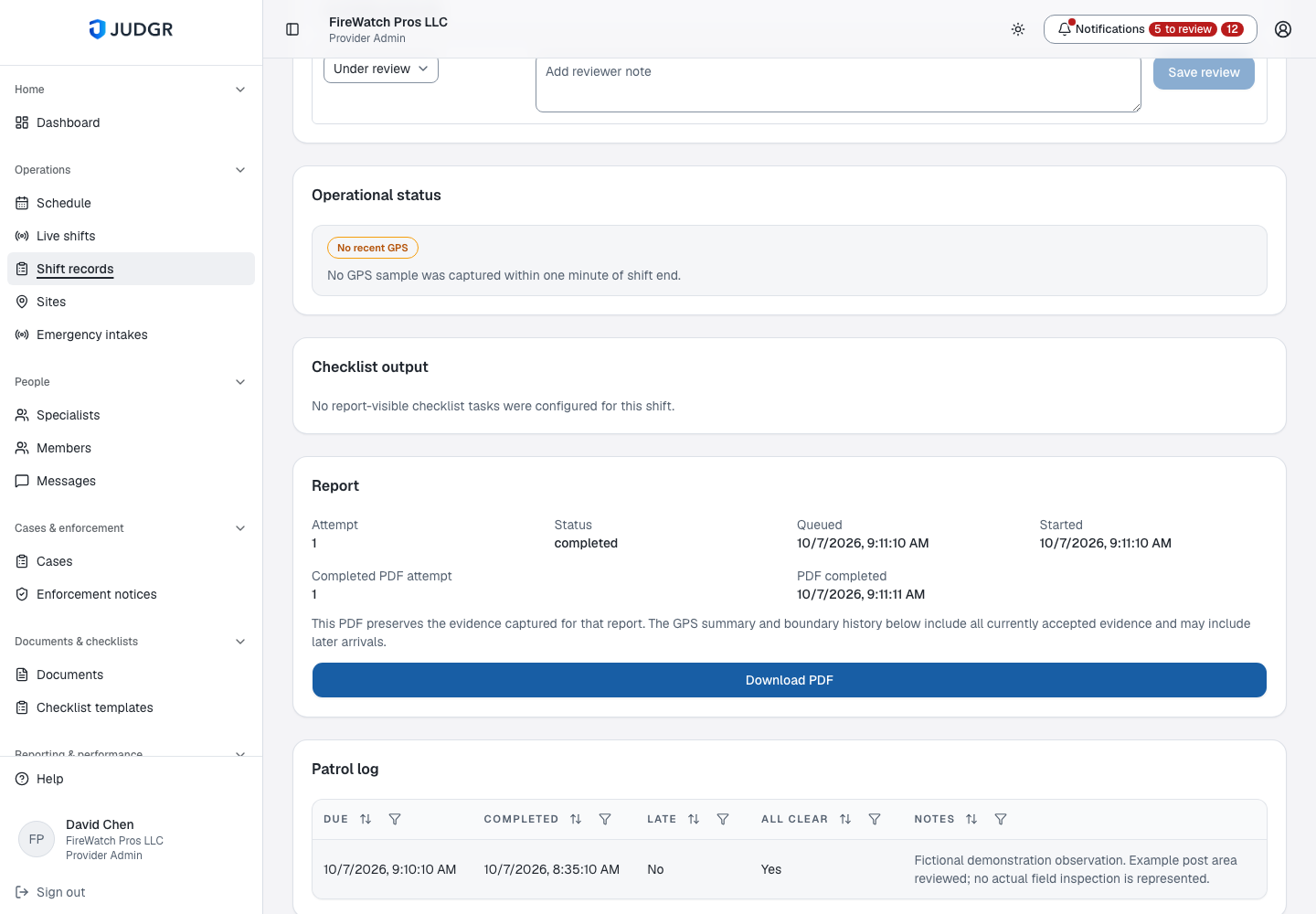
Check closeout synchronization and report status separately. Finishing means local closeout is still pending transfer. When the report is ready, download it with its authenticity reference. Public verification protects private evidence; operational acceptance remains a separate review.
Questions about fire watch operations
Does JUDGR guarantee fire watch compliance?
No. JUDGR records work and applies configured requirements. Your operation identifies its obligations, performs the work, and obtains required authority decisions.
Can the specialist start offline?
New shifts require an online start from the specialist’s own assignment. Supported capture can continue offline once active.
What if a required patrol photo will not save?
Read the error, check location and permissions, retain selected evidence, and retry. A failed upload is not confirmed evidence.
What can a report recipient verify publicly?
They can check authenticity and the current verification state. Private photos, evidence, and GPS remain protected.
Keep exploring
Next step
Connect your field work and review
Tell us about your team, sites and reporting needs. Explore JUDGR or discuss your workflow with us.