

Incident reporting
Security Incident Reporting Software
Keep the incident account and its evidence connected to the active shift. Give authorized reviewers the observations, actions, and context needed to understand the event.
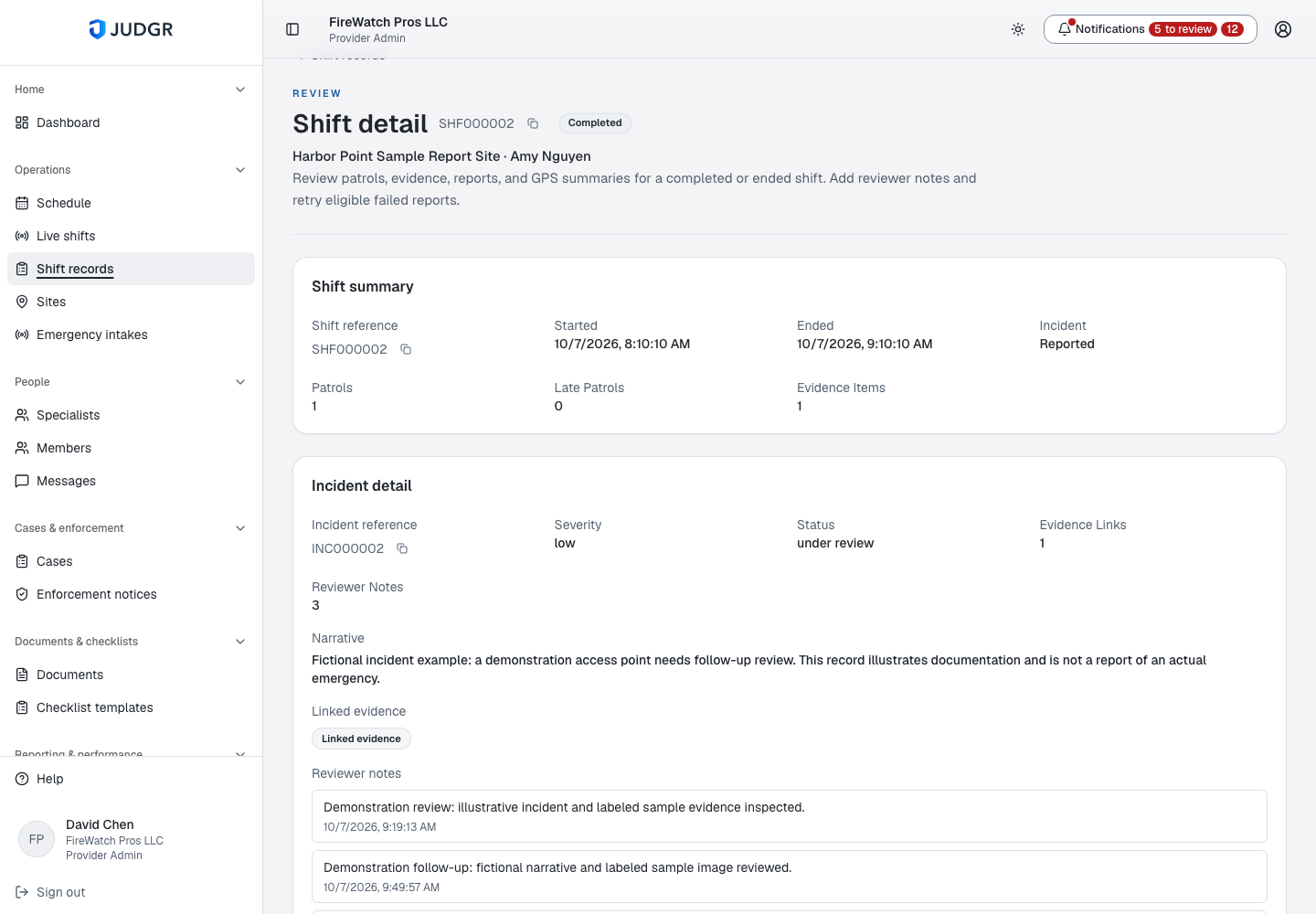
JUDGR in use
See the workflow
A walkthrough of the actual application, using demonstration records.
Record an event in its operational context
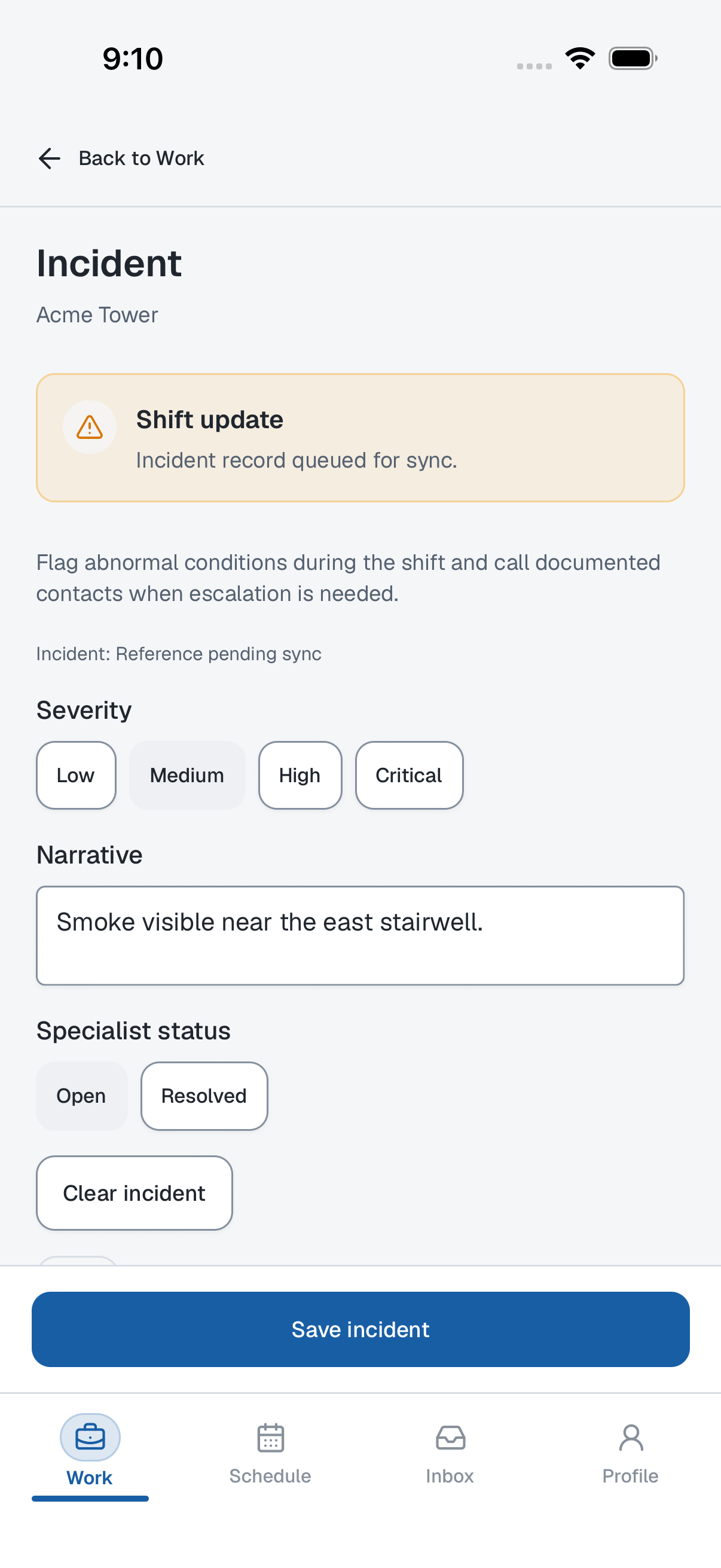
Report the incident from active Work and add the requested information and supporting evidence. The record retains shift, site, and specialist context. Separate direct observations from information received, and describe actions actually taken.
Describe the facts a later reviewer needs
For damage discovered at an entrance, identify the entrance, visible condition, immediate area, and actions under site instructions. Add a relevant photo. Say the damage was discovered if the specialist did not witness it occurring.
For a hazard, describe what could be inspected safely and identify information provided by a site contact. This gives the reviewer a clear chronology and source for each fact.
Follow the emergency procedure alongside reporting
Follow the site’s emergency and escalation procedure for urgent events. Saving an incident does not call emergency services or dispatch help. Record the observed facts and actions when safe, then confirm the saved account.
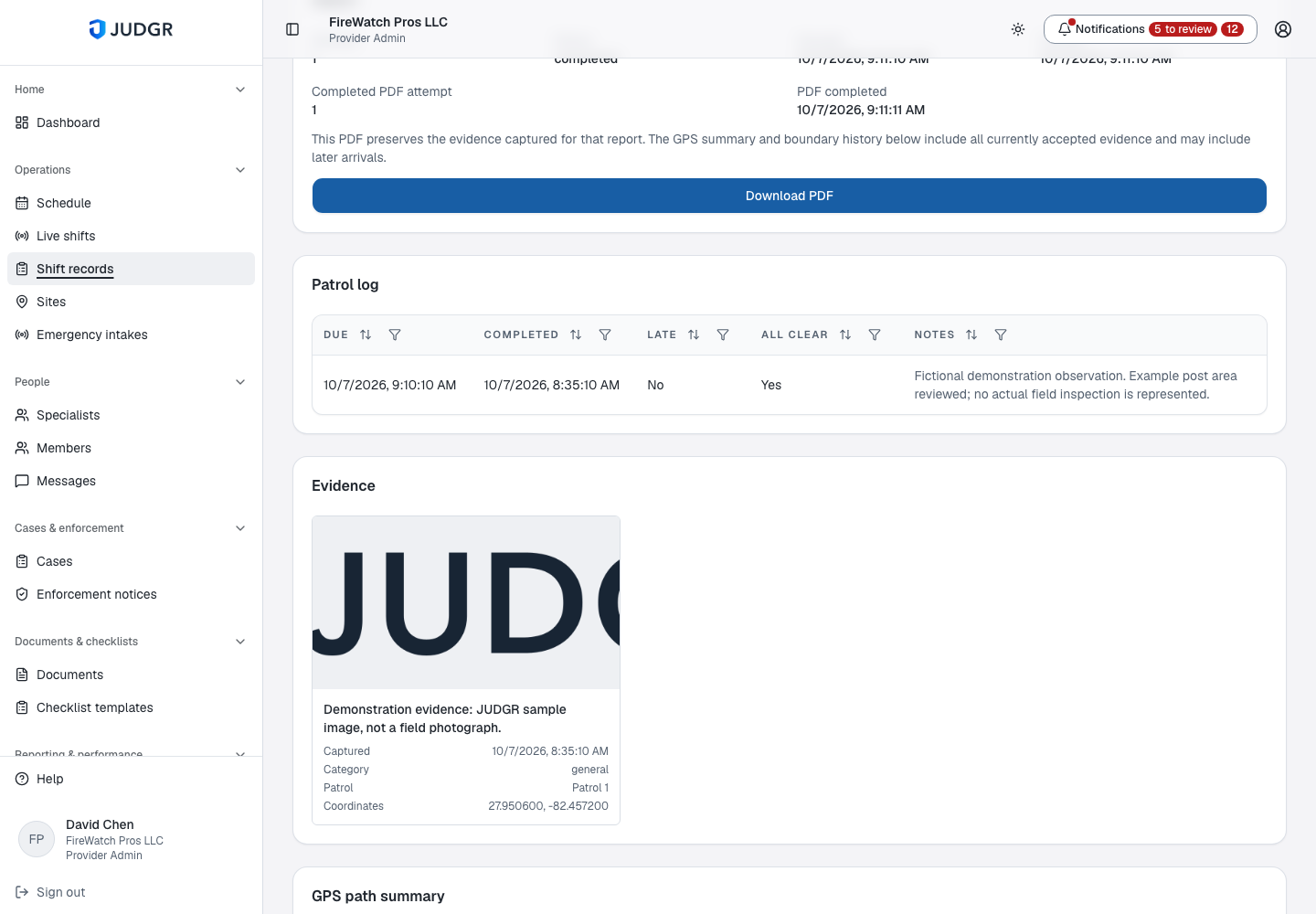
Add evidence that explains the incident
Use photos that explain the incident and captions that identify the relevant condition. Review the selected evidence before saving.
Camera capture needs usable location and device access. If location acquisition fails, check settings and retry. A photo from that failed attempt has not been saved to the incident.
Inspect the saved record, then review within scope
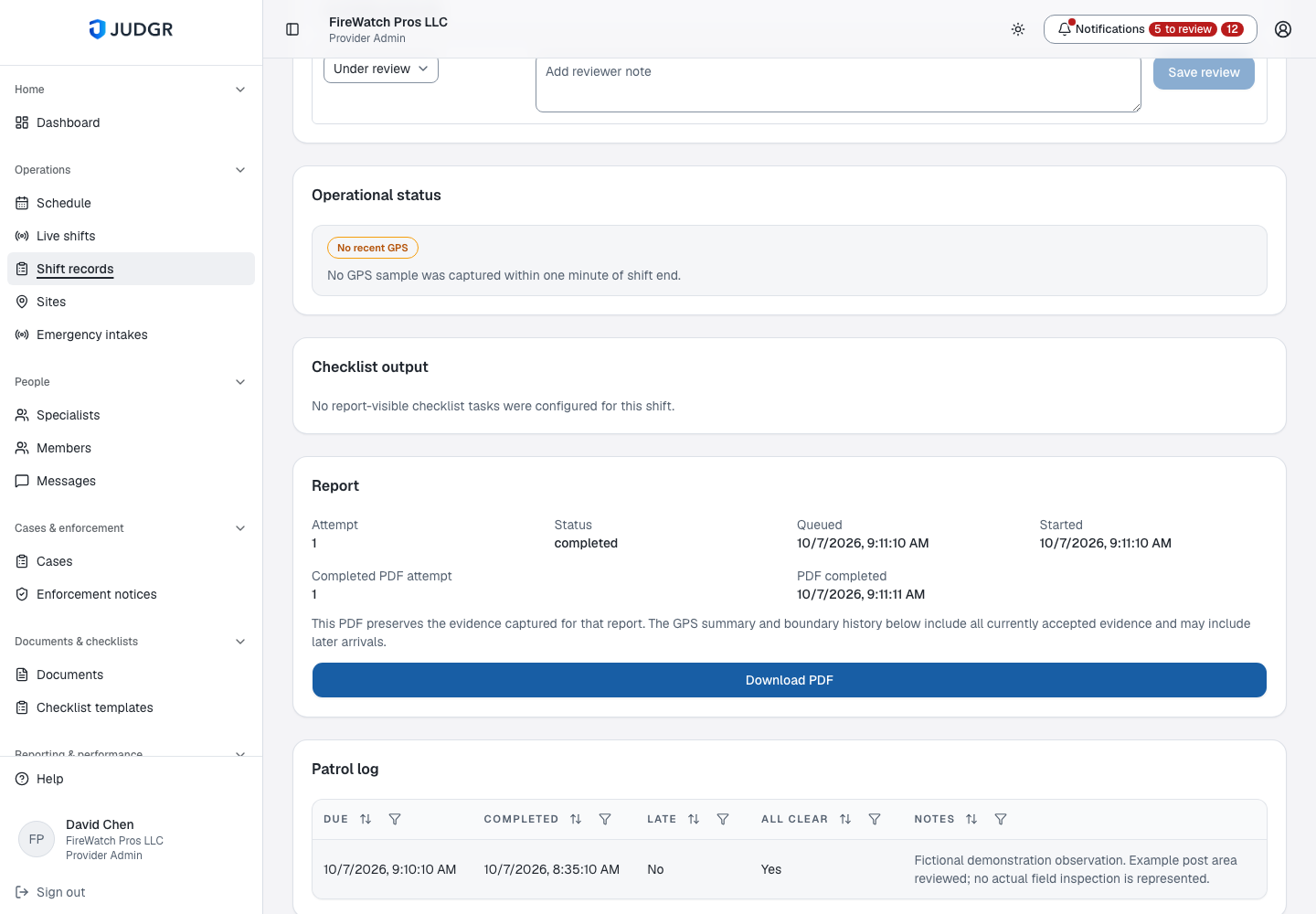
Use View incident to inspect an existing account and return to Work. Confirm the narrative and evidence after a save or retry. Authorized reviewers can add permitted notes and status updates within their scope.
Preserve the account when saving fails
If validation or saving fails, resolve the displayed issue and retry. Supported capture can queue offline during an already-started shift; reviewers see it after synchronization. Retain pending work while reconnecting and resolving rejections.
Keep closeout consistent with the incident
Closeout shows a read-only summary from the saved incident. Review or correct the underlying incident before ending work. The completed record and report retain that context, while operational follow-up and report processing have their own states.
Questions about incident reporting
Does reporting an incident alert emergency services?
No. Follow the site’s emergency procedure. Saving an incident documents the event without dispatching a response.
Can incidents be recorded without a connection?
Supported incident capture can queue during an already-started shift. New shifts start online; reviewers see the incident after synchronization.
What if an incident photo fails?
Check the error, usable location, and permissions, then retry. A failed camera attempt has not saved the evidence.
Can a reviewer rewrite the specialist’s submission?
Reviewer notes and permitted status changes retain separate authorship. Protected corrections follow their own authorized process.
Keep exploring
Next step
Connect your field work and review
Tell us about your team, sites and reporting needs. Explore JUDGR or discuss your workflow with us.